

Hidden iPhone Duo Trick: How to Save Your Favorite Split-Screen App Combinations
Love multitasking on your iPhone Duo? Here's a trick you'll wish you knew sooner!

One of the coolest things about the iPhone Duo is being able to use two apps side by side. Whether you're shopping while watching a movie, comparing prices, or keeping your favorite apps open together, split-screen multitasking makes everything a little easier.
But here's something you might not know: You can use Apple's Shortcuts app to save your favorite split-screen app combinations and launch them together with just one tap!

No more opening each app individually and setting up your split screen every time.
And the best part? You can add your shortcut to your Home Screen, Dock, or Control Center for even faster access!
Let's show you how!
What You'll Need
Before getting started, make sure you have:
-
Your iPhone Duo
-
Apple's Shortcuts app
-
Two apps you'd like to open together
For this tutorial, we're using Kernel and Target as our example, but you can choose your own favorite app combination.
Step 1: Open the Shortcuts App
Start by opening the Shortcuts app on your iPhone Duo.
This is where you'll create a shortcut that launches your two favorite apps together.
Tap the + button to create a new shortcut.
Step 2: Create Your Split-Screen Shortcut
Here's where things get interesting!
If your version of Shortcuts supports natural-language shortcut creation, tap the option to describe what you want your shortcut to do.
For our example, enter:
"Create a new shortcut called 'Kernel & Target Split' that launches Kernel and Target simultaneously side-by-side in a 50/50 Split View window."
Submit your request using Apple Intelligence, or type the shortcut actions manually if you prefer. Then review the shortcut that Shortcuts creates.
Quick tip: Replace Kernel and Target with any two compatible apps you prefer.
Step 3: Review and Save Your Shortcut
Once your shortcut is created, check that the correct apps are selected.
For our example:
-
First app: Kernel
-
Second app: Target
-
Layout: Side-by-side split screen
Give your shortcut a name you'll easily recognize, such as Kernel & Target Split.
Save your shortcut when you're finished.
Step 4: Add Your Shortcut to Your Home Screen
Want even faster access? Add your new shortcut directly to your Home Screen!
-
Open your saved shortcut.
-
Tap the shortcut's menu or details.
-
Select Add to Home Screen.
-
Choose your preferred icon and name.
-
Tap Add.
That's it! Your shortcut now has its own Home Screen icon, just like an app.
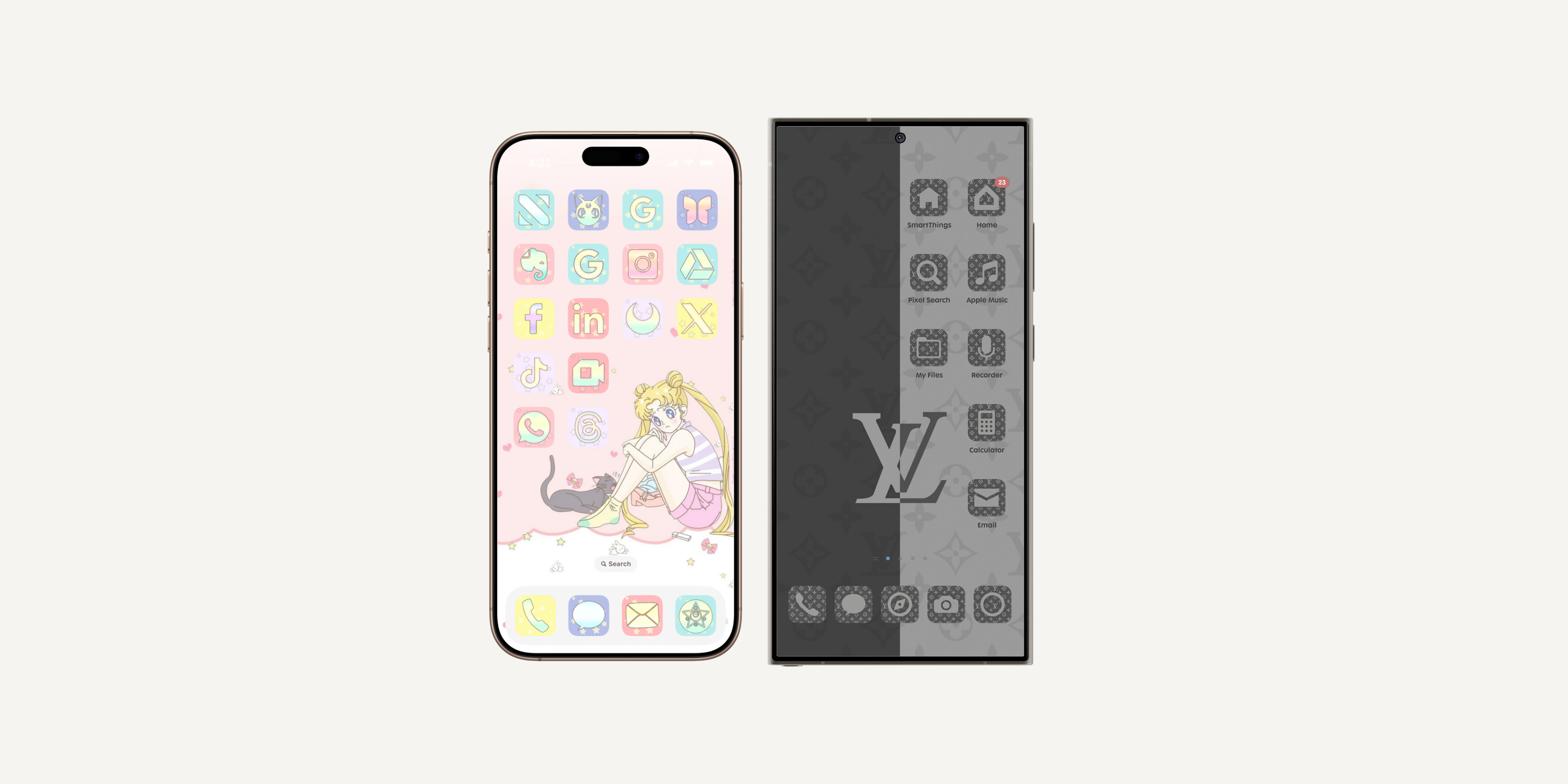
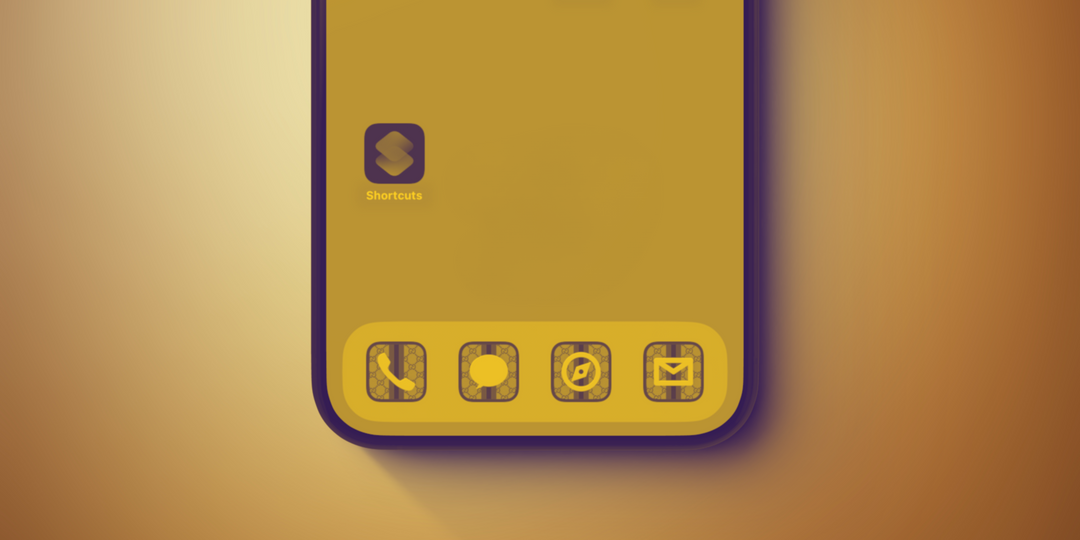
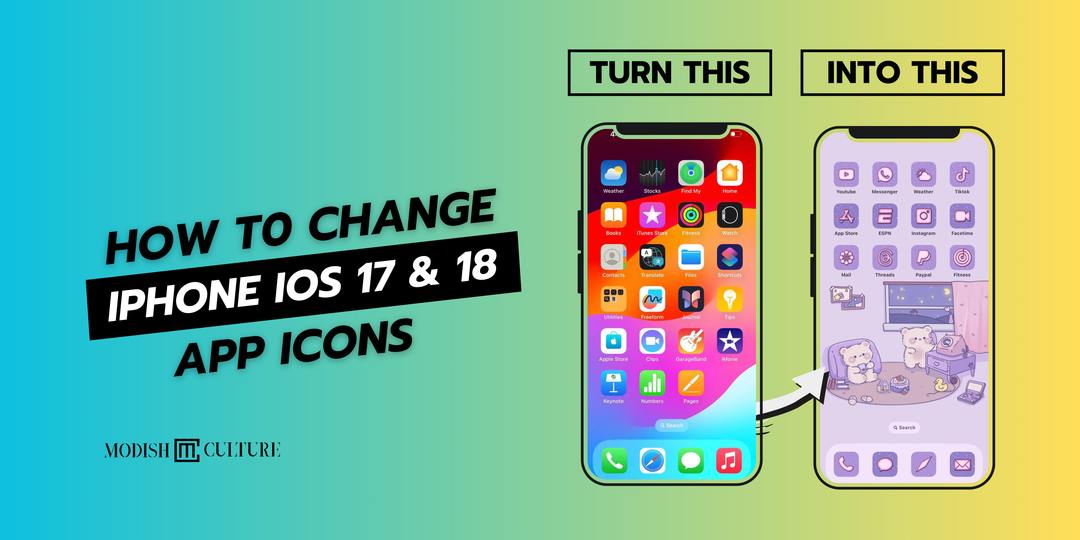
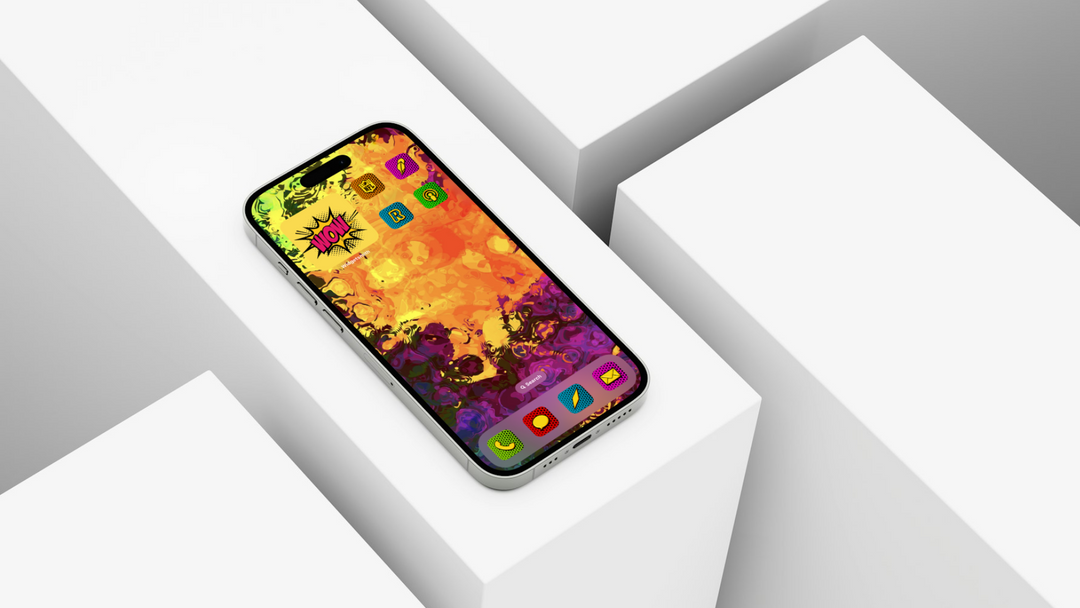
Bonus tip: You can customize your shortcut icon with your favorite image, symbol, or color to match your Home Screen aesthetic! Want to give your phone a unique look? Explore our custom iPhone app icon packs to find a style that's uniquely yours!
Step 5: Move Your Split-Screen Shortcut to the Dock
Want your favorite split-screen combination available without searching through your Home Screen pages?
Add it to your Dock!
Once you've added your shortcut to your Home Screen:
-
Locate your newly created shortcut icon.
-
Touch and hold the app-pair icon until you can move it.
-
Drag the shortcut into the Dock.
-
Position it wherever you'd like among your other Dock apps.
-
Tap Done or exit Home Screen editing mode.
Now your saved app combination is just one tap away from the Dock whenever it's visible!
Quick tip: If your Dock is already full, move an existing app out of the Dock first to make room for your new shortcut.
Step 6: Add Your Split-Screen Shortcut to Control Center
Here's another convenient way to access your favorite app combination!
You can add your shortcut directly to Control Center, giving you quick access without needing to find its Home Screen icon.
Here's how:
-
Open Control Center on your iPhone Duo.
-
Touch and hold an empty area to enter editing mode.
-
Tap Add a Control.
-
Search for Shortcuts.
-
Select Run Shortcut.
-
Tap Choose to select which shortcut the control should run.
-
Find and select the shortcut you just created.
-
Resize or reposition the control to your liking, then exit editing mode.
That's it!
Your split-screen shortcut is now available right from Control Center.
Bonus tip: You can create multiple Run Shortcut controls for different app combinations, making Control Center your own personalized multitasking hub!
Step 7: Launch Both Apps With One Tap!
Now for the fun part!
You've created your split-screen shortcut and added it to your favorite places.
Whenever you're ready to multitask, simply launch it from whichever option works best for you:
-
Your Home Screen: Tap your custom shortcut icon.
-
Your Dock: Tap your saved app-pair shortcut for quick access.
-
Control Center: Open Control Center and tap your Run Shortcut control.
Your iPhone Duo can launch your selected apps together in split-screen mode when the shortcut action and apps support that layout.
Instead of repeatedly setting up your multitasking workspace, you have a shortcut ready whenever you need it.
One shortcut. Two apps. One tap.
Pretty convenient, right?
Why We Love This iPhone Duo Trick
It's the little features that can make a big difference in how you use your phone.
Saving your favorite app combinations can help you:
-
Spend less time setting up your screen.
-
Switch between your favorite multitasking activities more easily.
-
Keep frequently used apps organized.
-
Access your favorite app pairs from the Home Screen, Dock, or Control Center.
-
Make better use of your iPhone Duo's larger display.
And once you've created your first shortcut, you can make additional ones for work, shopping, entertainment, or everyday tasks.
Whether you're comparing rides with Uber and Lyft, browsing while watching a movie, or keeping your favorite shopping apps side by side, there are plenty of combinations worth trying!
Note: Split-screen behavior and available shortcut actions depend on your device's software version and app compatibility.
Watch the Full Video Tutorial
Want to see this trick in action?
Watch our step-by-step video tutorial below! 👇
Follow along as we show you how to create your own split-screen app shortcut, customize it, and save your favorite app combinations for quick access.
Found this tutorial helpful? Give the video a thumbs up, leave a comment sharing your favorite split-screen app combination, and subscribe to Modish Culture on YouTube for more hidden iPhone Duo tips and tricks!
Make Your iPhone as Unique as You Are
Love discovering new ways to personalize your iPhone?
At Modish Culture, we're all about making your tech experience more stylish, creative, and uniquely yours.
Take a look at our collection of custom iPhone app icon packs and digital printables to give your device a fresh new look.
And tell us in the comments: Which two apps would YOU save as a split-screen shortcut? 👀
We'd love to hear your favorite combinations!
— Modish Culture

Leave a comment